
Managing Your SDK
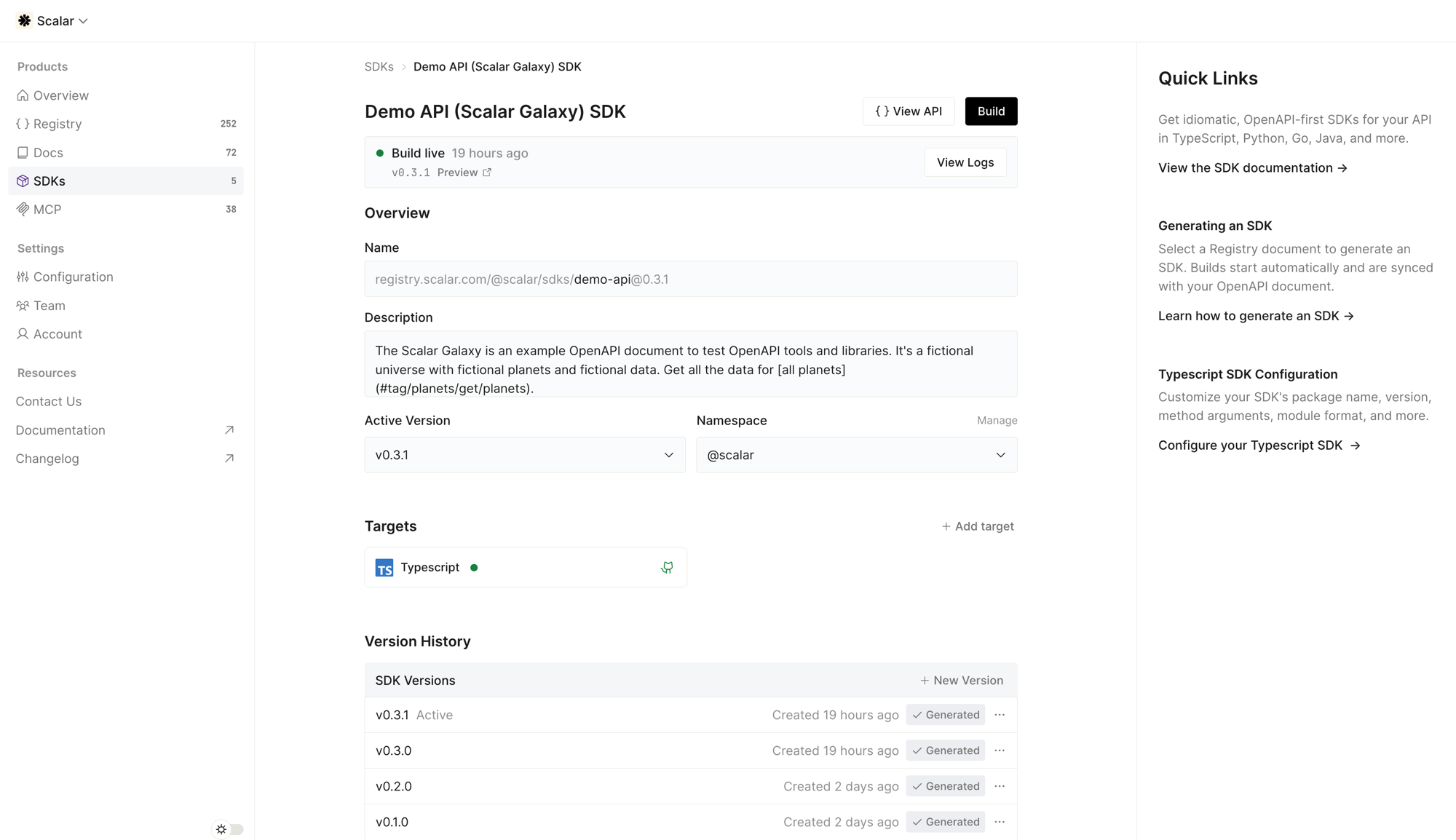
The overview page#
Each SDK opens to an overview with:
- Name and description: human-readable metadata used in generated packages. Edit them inline.
- Active version: the version currently served from the registry.
- Namespace: the registry namespace the SDK is published under.
- Targets: every configured language, with its build and GitHub sync status.
- Version history: every version and its per-target build status.
Linking an API#
An SDK is generated from an OpenAPI document in your registry. The SDK stays bound to that document, so regenerating picks up the latest API changes. You can re-link the SDK to a different document, or unlink it (which pauses builds until you link one again) from the SDK settings.
Building#
A build generates every configured target from the current OpenAPI document and configuration.
Click Build, or Save and Build after editing the configuration. Scalar generates each target.
Each target shows a live status: pending while it generates, generated on success, or failed. Open the logs to see the output or the error for a target.
Every build analyzes your OpenAPI document and configuration before it generates anything, and the diagnostics report is part of that output. A build that trips your diagnostics gate fails without writing files.
If a target is linked to a repository, the build pushes to scalar-generated, merges into scalar-next, and updates the release pull request against your default branch. If publishing is enabled, merging that release pull request tags and publishes the version.
A target set to promote manually stops short of that: the build is generated and mirrored to staging, and reaches the production repository when you promote it.
[!NOTE] Every plan includes one SDK target; additional targets start at $150 per month each. When you add a new target on a paid plan, the dashboard shows a cost confirmation before the first build.
Versions#
SDK versions are explicit, so you control exactly what is built and released.
- Create a new version: draft a new version at a specific semver, targeting a specific API version. The draft does not affect the live SDK until it is built and activated.
- Version history: browse every version, draft or built, with per-target status.
- Active version: set which version is live in the registry. Consumers and code samples resolve against the active version.
- Discard a draft: delete an unbuilt draft without generating it.
The SDK version here controls what the dashboard builds and serves from the registry. The version that ships to a package registry is computed separately, by release-please from the commit history of your SDK repository — or set exactly by editing the release pull request title. See Publishing.
Downloading an SDK#
You do not need a GitHub repository to use a generated SDK. From a version's detail page, Download the generated artifact for any target to vendor it directly or inspect the output.
Settings#
From the SDK settings — the General card on the studio's Advanced tab — you can rename the SDK, edit its description and namespace, set its registry visibility to public or private, manage which groups can access a private SDK, and delete the SDK. Renaming changes the display name only; the package names, registry URLs, and slug stay the same. Deleting an SDK removes its versions and registry entries; code already pushed to GitHub or published to a registry is not affected.