
Private Docs
Make sure you have created a Scalar Account & are logged in (see create account guide)
Create your first access group#
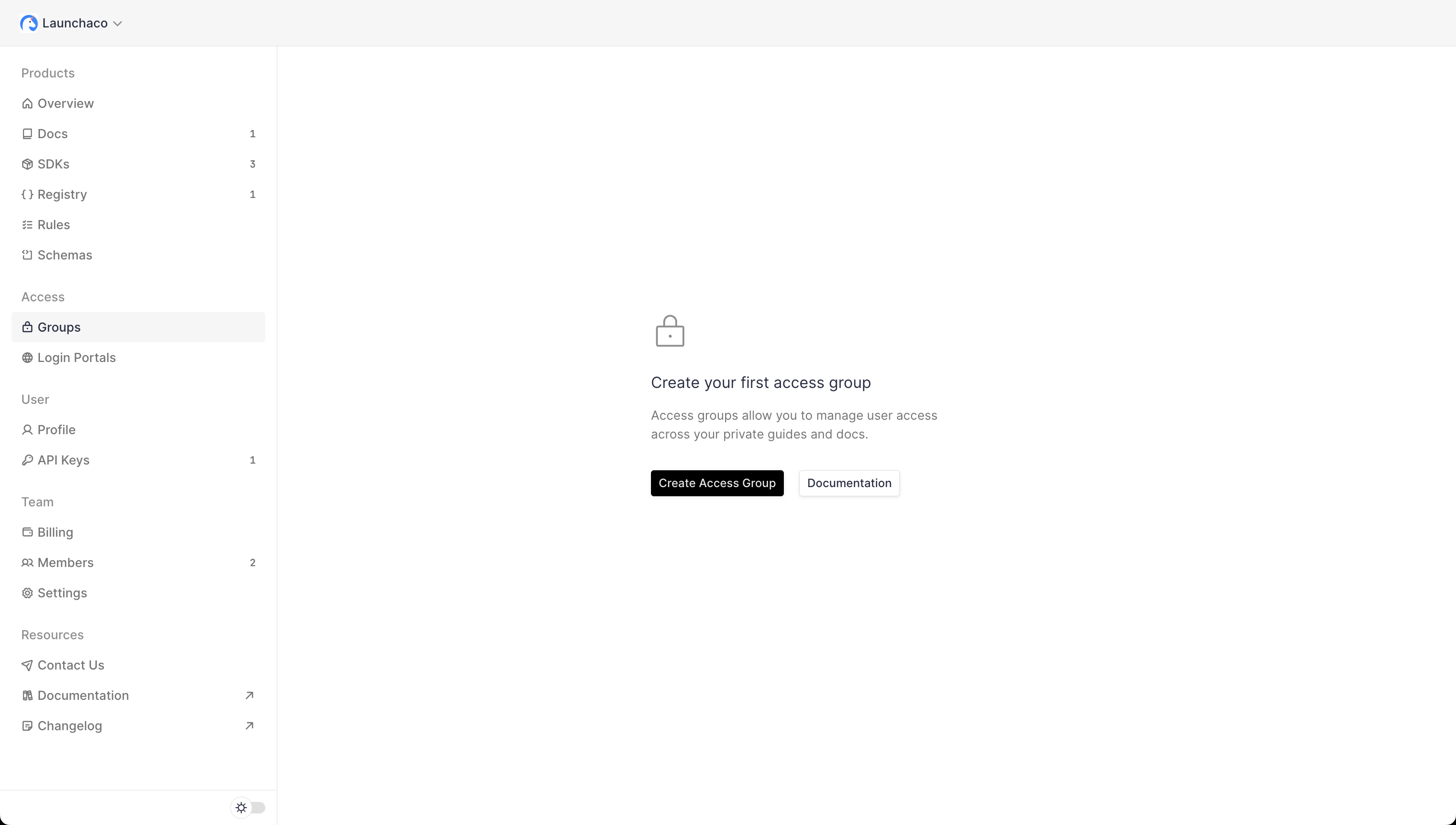
Now let's make our first access group!
From the dashboard left-most sidebar under Access > Groups, then click Create Access Group.
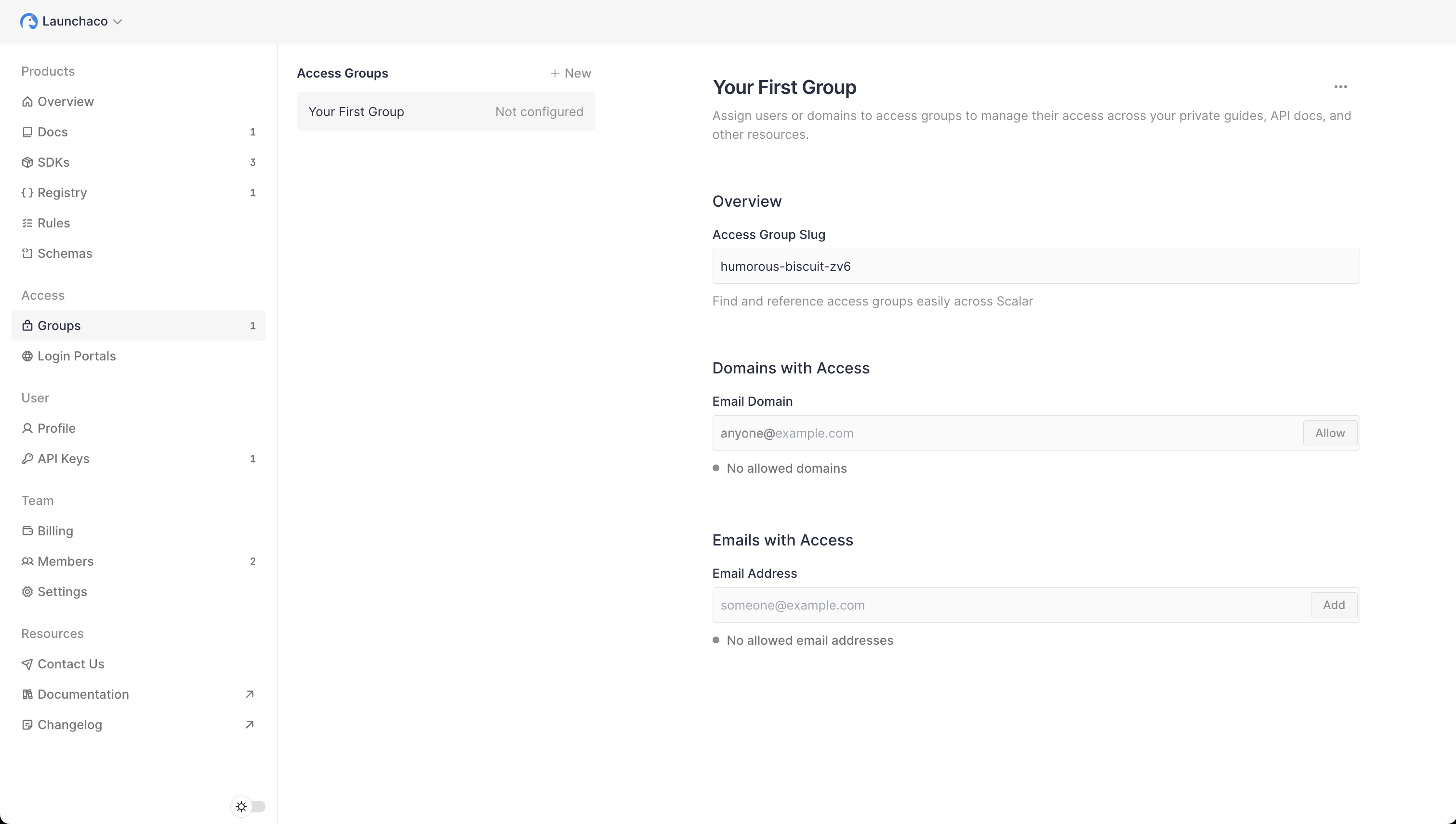
Now that you have created an access group you can either add a catch-all for domains for access, or just granular email addresses.
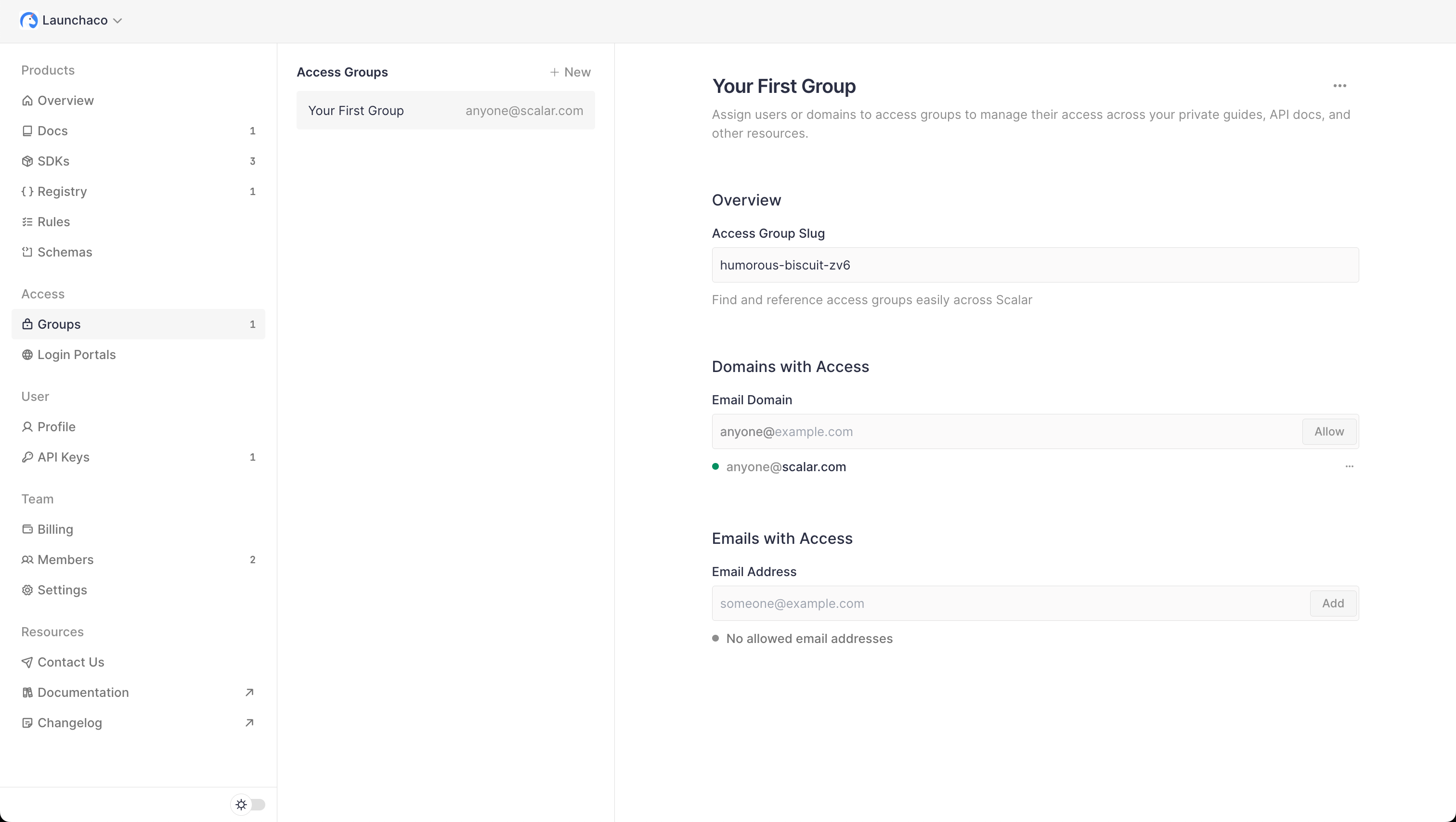
Add Domains with Access#
To add a domain to an access group, type in the domain name you want to give access to and hit "add".
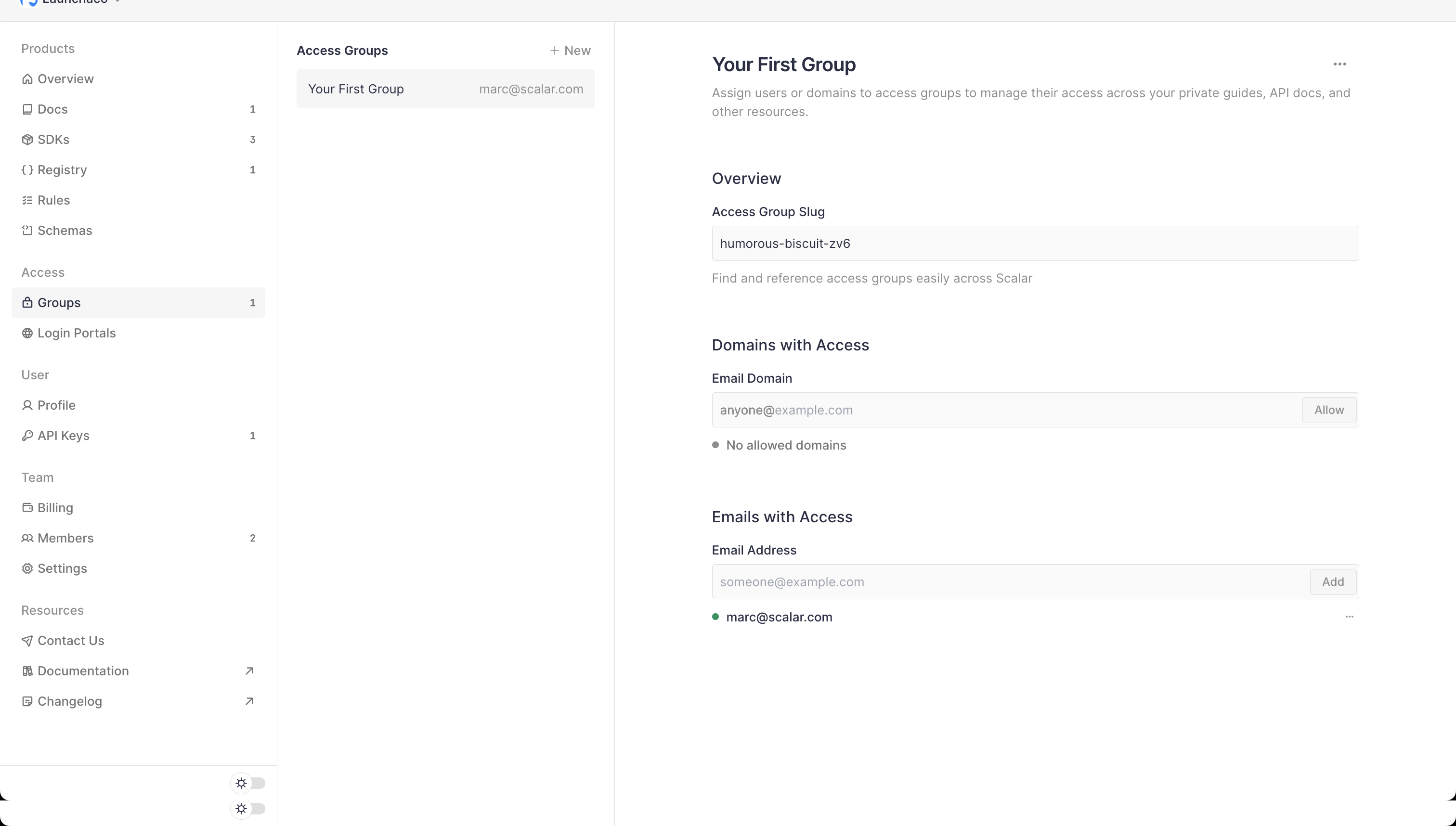
Add Emails with Access#
To add only specific emails to an access group, type in the email you want to give access to and hit "add".
Use the Access Group#
Now let's restrict one of our Docs projects to the newly created access group.
Navigate to your Docs Project and navigate to the Security section, ensure "Private Docs" is enabled then you can allow access to the newly created access group.
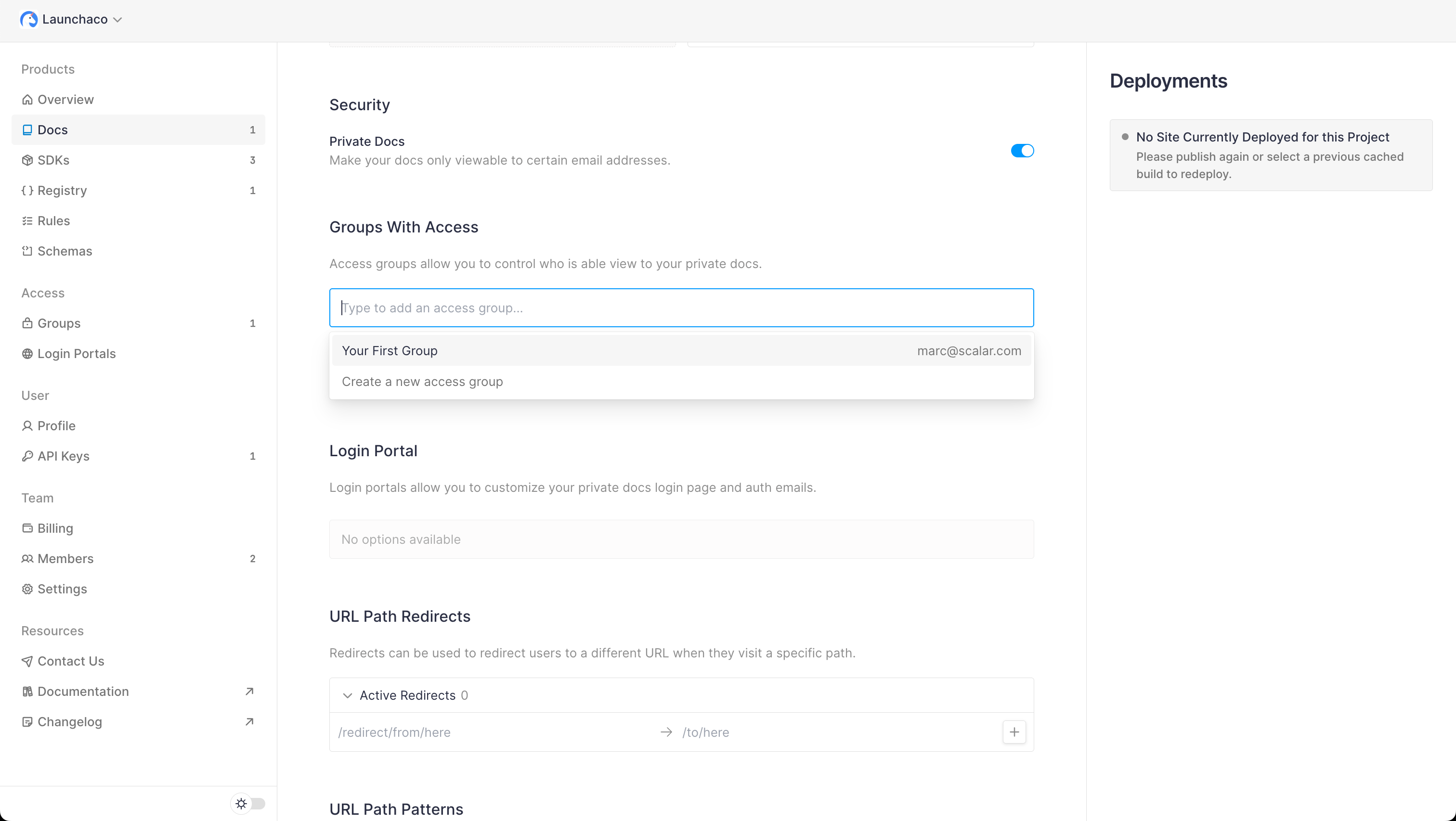
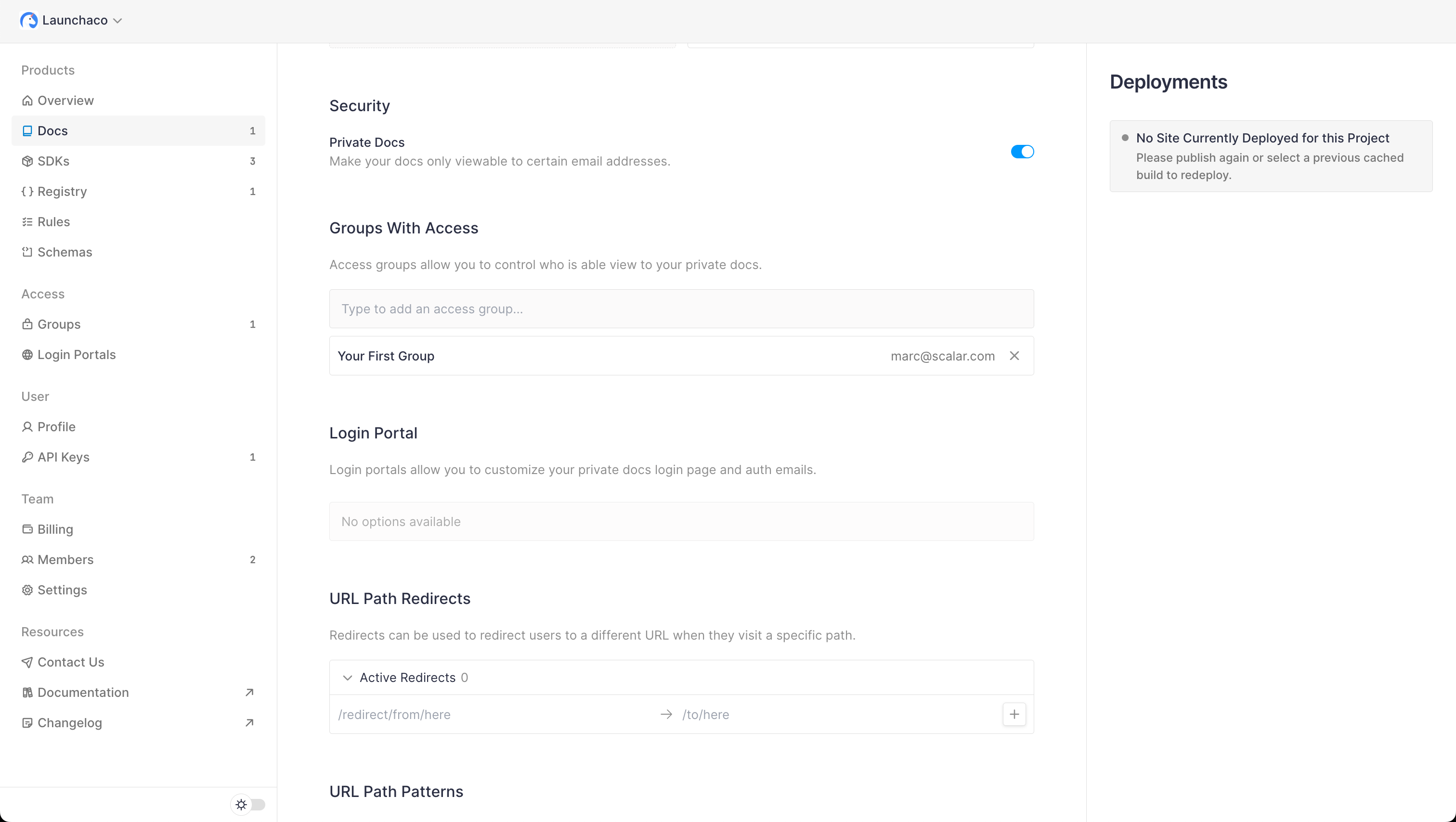
Once you selected a group, your docs will be private with only that access group enabled to view the project.
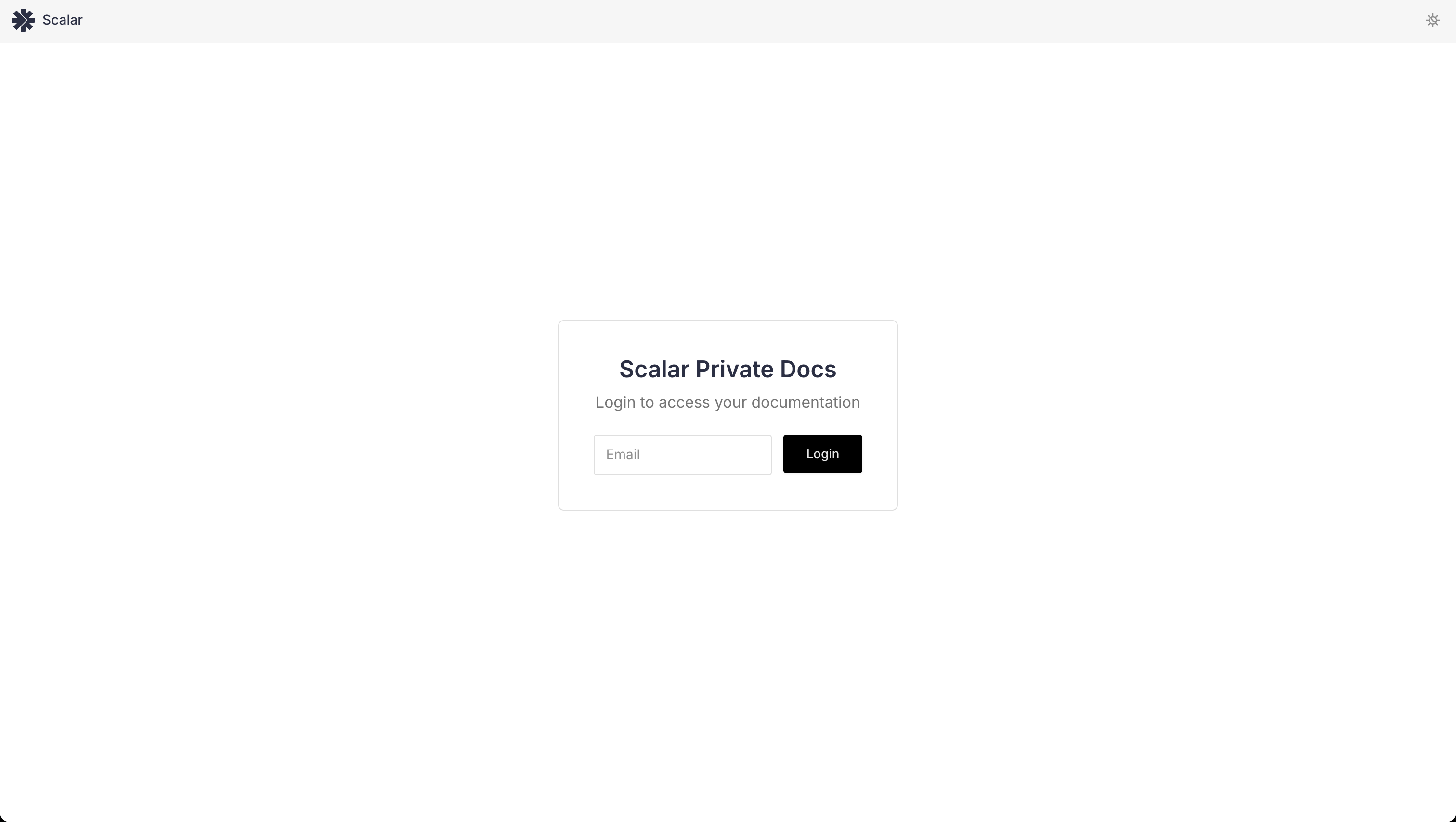
You can customize your login page to your branding if you want, and when you delete the access group changes will be made immediately and access will be revoked.